Annex 1: Product Homologation
REFERENCE GUIDE FOR PRODUCT HOMOLOGATION FROM THE EMIZOR ADMINISTRATION PLATFORM
Due to recent National Taxes (SIN) Board Normative Resolutions (RND), it may be necessary to update the homologation of your products. For this purpose, the system provides tools for both individual management and Mass Homologation of your entire catalog.
Overview and Available Buttons
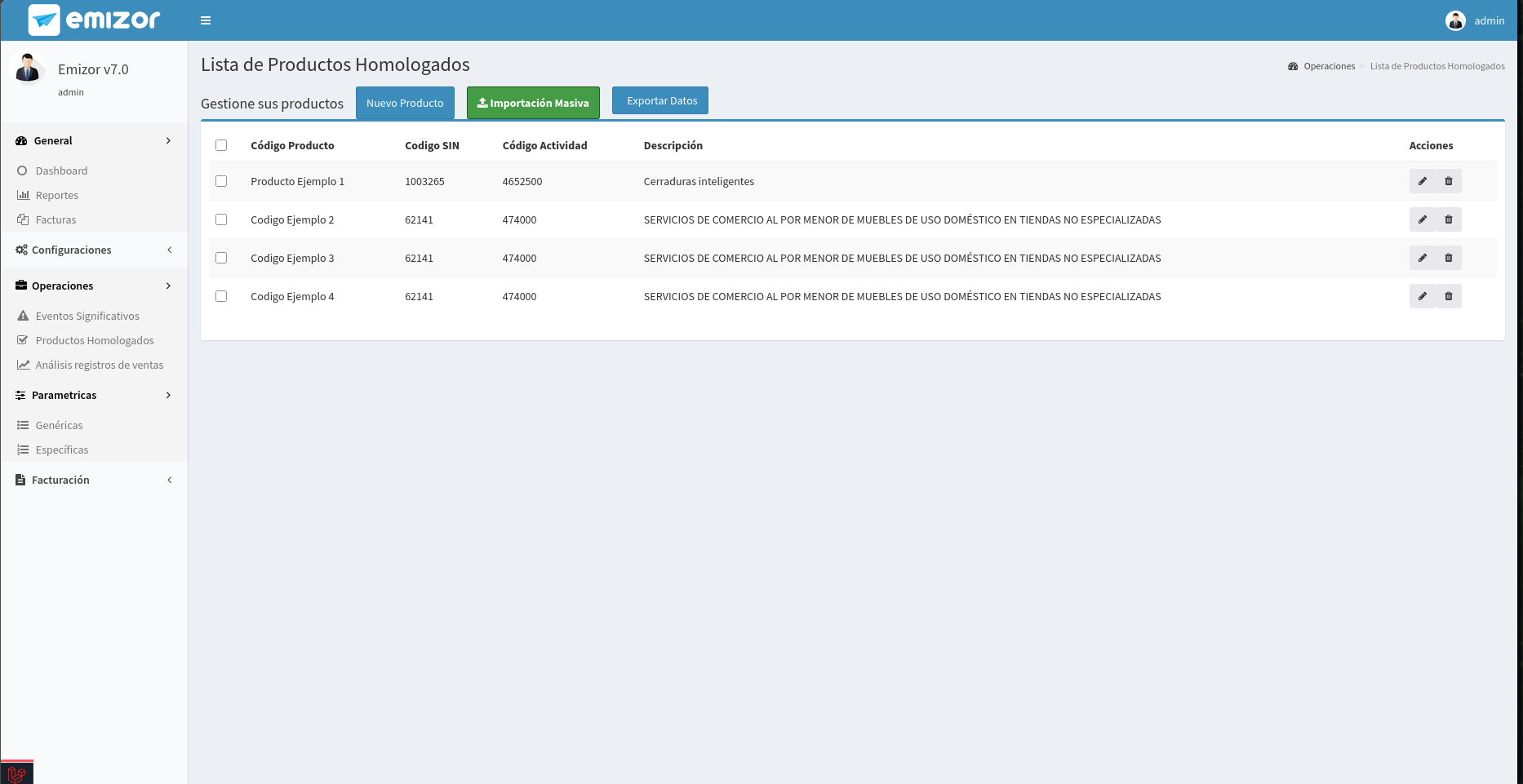
To begin, access the Emizor Administration Platform and go to the left sidebar menu, navigating to Operations > Homologated Products.
On this main screen, you will find all the necessary tools to manage your catalog:

As seen in the image above, you have the following main options:
- New Product / Edit: Allows you to register or modify the homologation of an item individually.
- Mass Import: Allows you to upload a file with multiple products and update them all at once.
- Export Data: Downloads a file with the current state of your products so you can review or edit it.
1. Editing and Registering an Homologated Product (Individual)
If you only need to register a new product or correct a specific one, follow these steps:
- Click on the New Product button or, if the product already exists, click on the Edit button (pencil icon) in the corresponding row.

- A form will open where you can enter the Internal Product Code.
- In the SIN Economic Activity field, select the corresponding activity from the authorized dropdown list.
- In the SIN Product Code field, select the official code from the Taxes catalog that applies to this item.
- Click Save. The system will register the changes immediately.
2. Select Product and delete or edit
To quickly delete or edit multiple products directly from the platform without using a file:
- Click on the check box for the product you want to delete or edit.
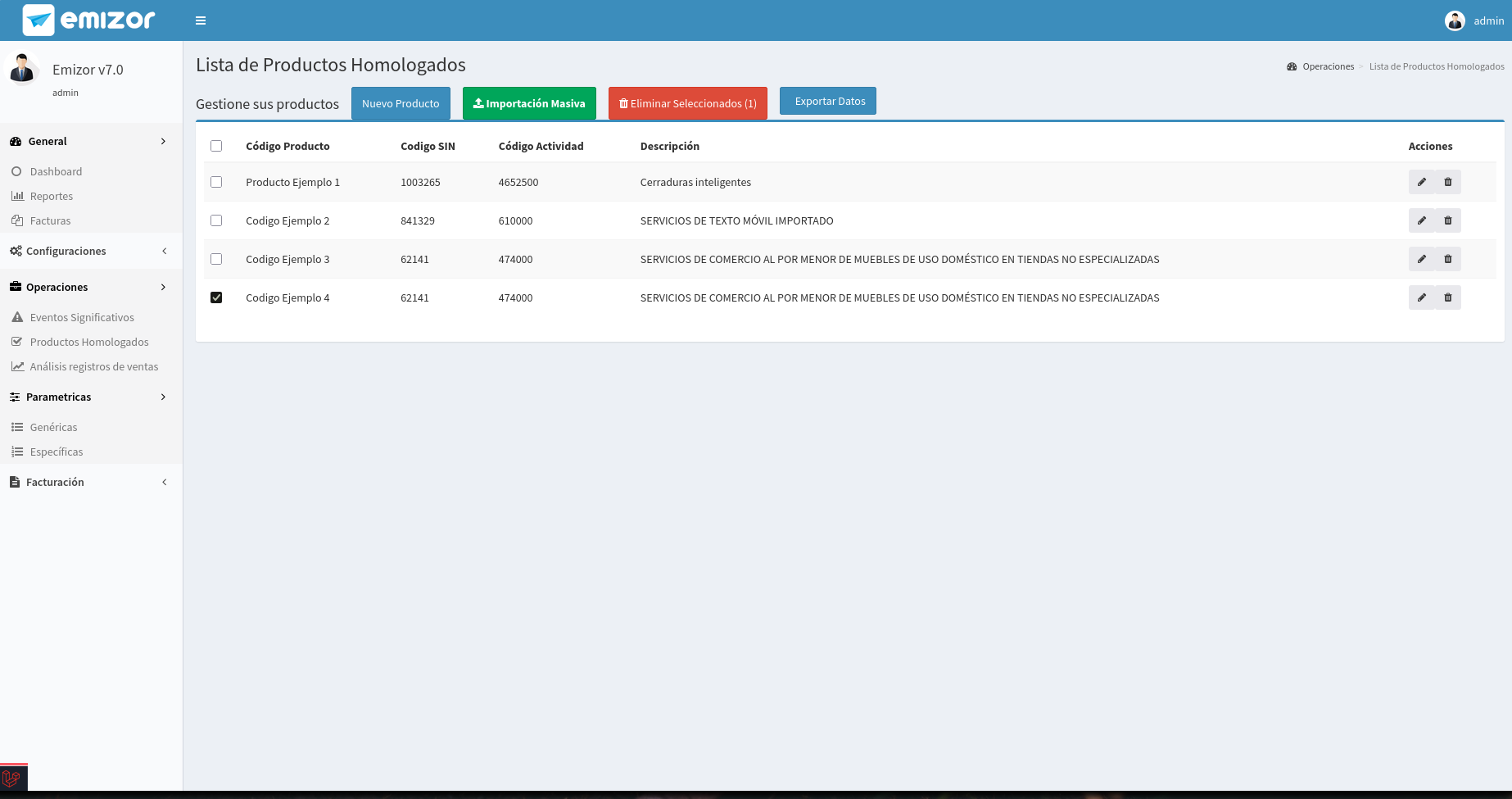
- Click on the Edit button (pencil icon) or delete button in the corresponding row.
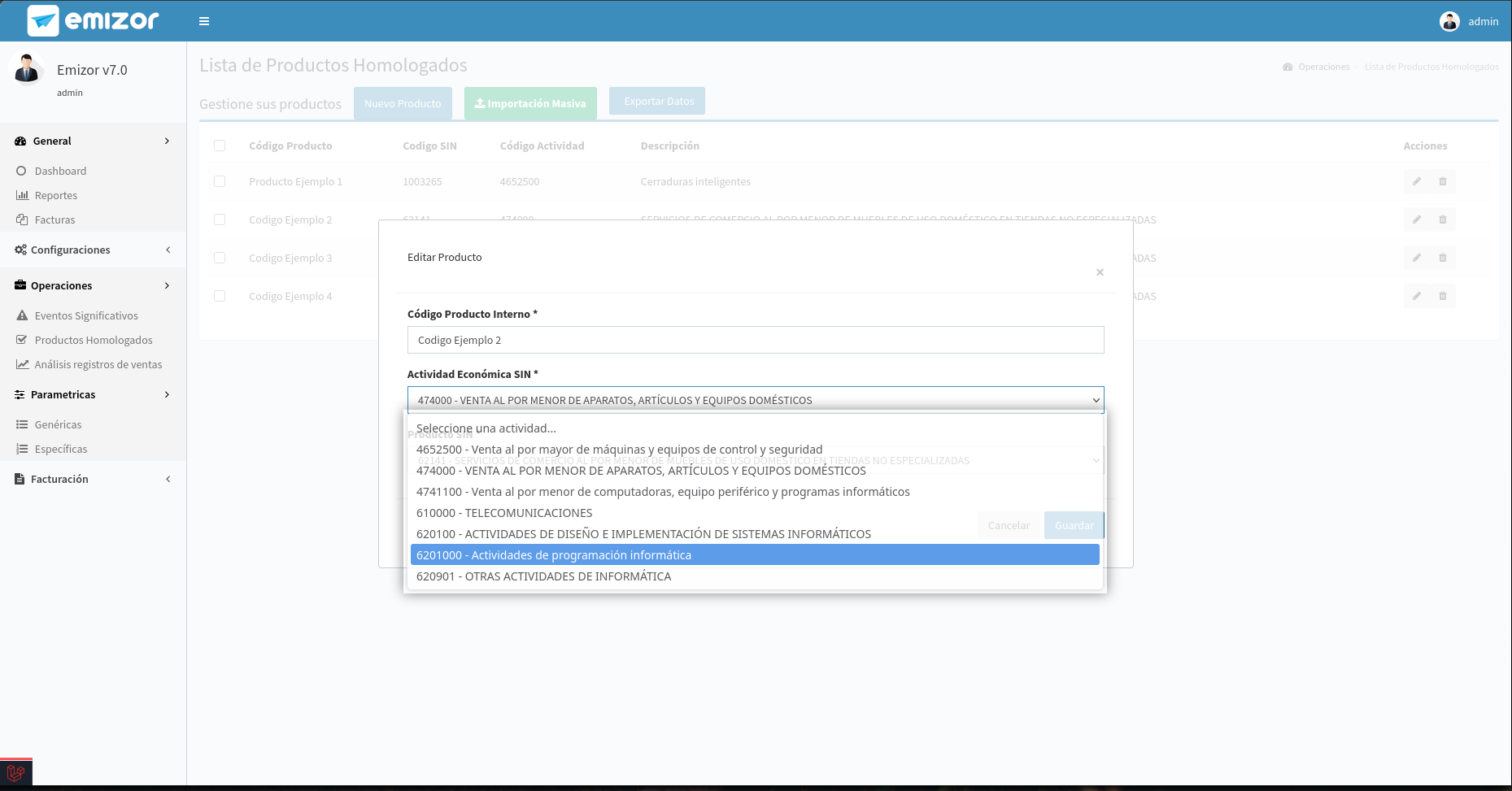
3. Mass Homologation (via Export / Import)
If you need to update multiple products simultaneously due to regulatory changes, use the mass process.
Step 1: Get the CSV File
To update your products in bulk, you first need a .csv formatted file. You have two options to get it:
Option A: Export your current data (Recommended)
On the main view, use the Export Data button to download a file with all your currently registered products.

Option B: Download an example template
If you prefer to start from scratch with a clean format, you can download the official template directly from the system.
Step 2: Fill the CSV File in Excel
Open the .csv file (either the exported one or the example template) in a spreadsheet editor like Excel or Google Sheets.
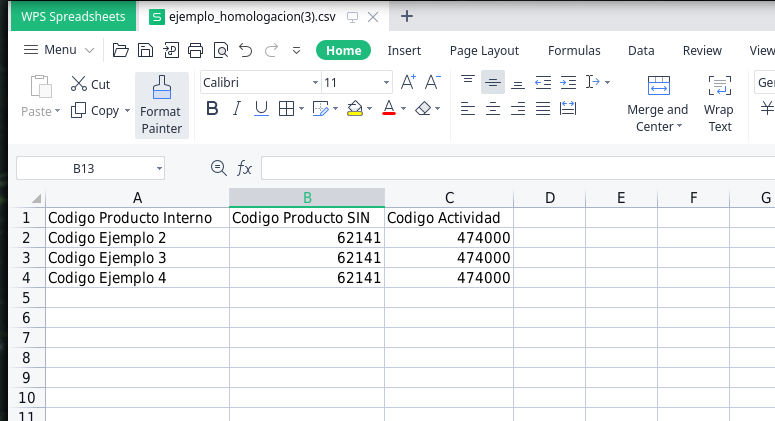
Make sure to correctly fill the key columns:
- Internal Product Code: This is the unique identifier. Do not modify this value for existing products.
- Economic Activity Code: Enter the new SIN activity code.
- SIN Product Code: Enter the new product code from the SIN catalog.
To fill it correctly you can use the Specific Parametrics Annex 3.
Step 3: Upload, Map, and Process the File
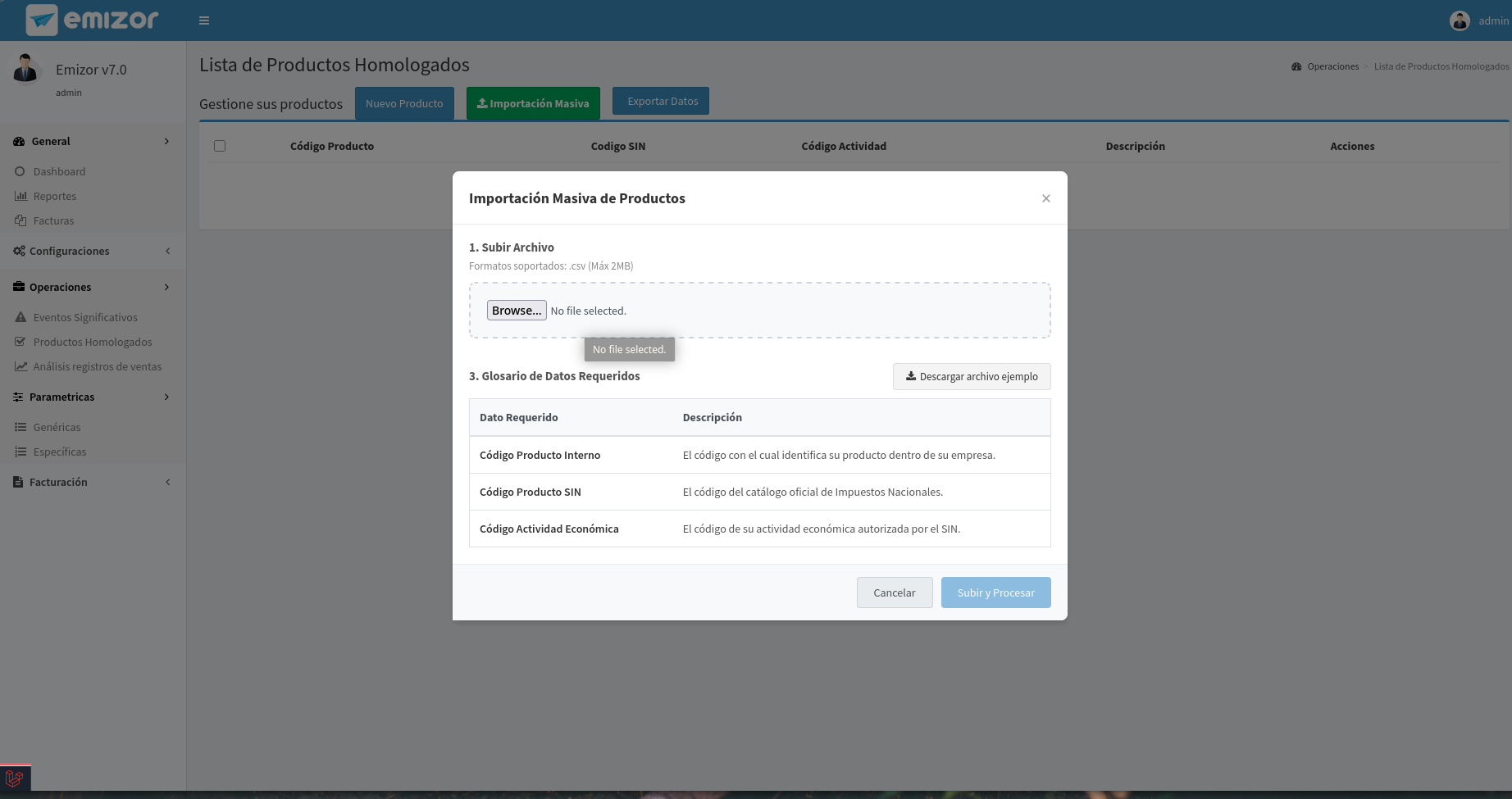
Once the file is updated and saved on your computer, return to the system and click the Mass Import button to open the upload window.
-
Upload File: In the first section, select the
.csvfile you just edited. (The maximum allowed size is 2MB). -
Map Columns: The second section will automatically appear. Here you must associate or map the headers of your uploaded
.csvfile with the fields required by the system. On this same screen, you can view the Glossary, which will show you what each column means and what specific data it needs.

-
Upload and Process: Once the mapping is complete, review that everything is correct and click the blue Upload and Process button. The system will begin homologating your products in the background.
-
Import Results and Error Handling: When the file processing is complete, the system will notify you about the result of the operation.

Homologation Logic: The mass homologation process uses the client's Internal Product Code as an index or pivot:
- If the code already exists: The current product will be overwritten and updated with the new data.
- If the code does not exist: A new product will be created in your catalog.
Error Handling: If the mass import is processed successfully, a confirmation message will be shown. However, if incorrect data is sent (for example, if homologation data like the SIN Product Code or Activity Code do not exist in the official Taxes catalog or are not correctly associated), the system will only process the valid data and will return a CSV file with the erroneous data so you can correct it and re-upload it.
Finally, once the notification is closed, you can verify in your catalog that the information for your valid products has been successfully updated.